

1
/
of
6
OSDTECH
Netis E3 AC1200 Wireless Dual Band Range WiFi Extender
Netis E3 AC1200 Wireless Dual Band Range WiFi Extender
Regular price
$30.00 USD
Regular price
Sale price
$30.00 USD
Quantity
Couldn't load pickup availability
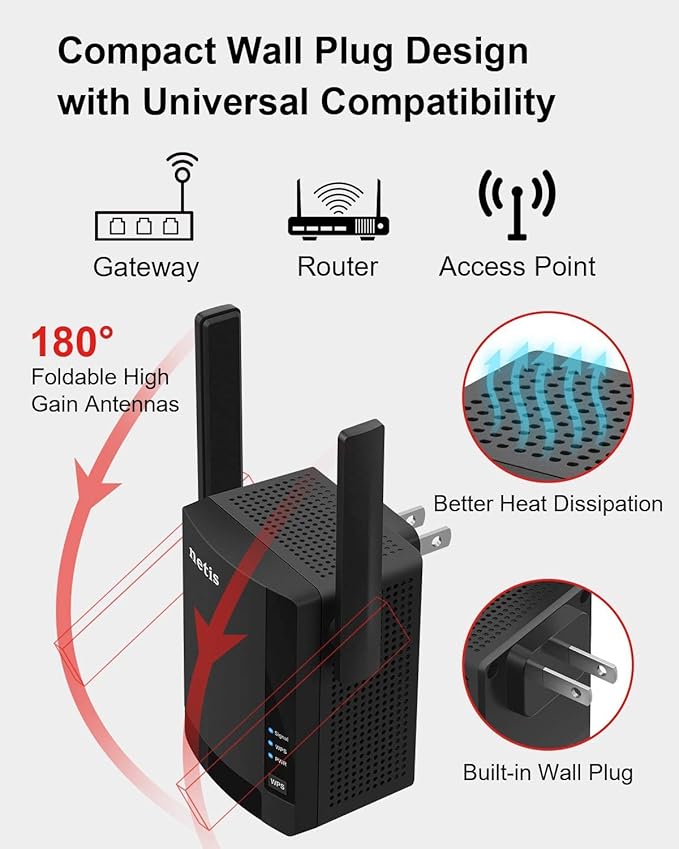
- Dual-band AC1200 speeds: Offers combined speeds of up to 1167 Mbps (300 Mbps on the 2.4 GHz band and 867 Mbps on the 5 GHz band) for smooth streaming and gaming.
- Multiple operating modes: Functions as a Repeater, Access Point (AP), or Router.
- WPS setup: An easy one-button setup lets you automatically connect to your main router by pressing the WPS buttons on both devices.
- Smart signal indicator: A light on the device helps you find the optimal location for the extender to ensure the best coverage.
- High-gain antennas: Equipped with two antennas to enhance signal strength and coverage.
- Wired connectivity: Includes an Ethernet port to connect a wired device, like a gaming console or PC.
How to set up the repeater
You can set up the Netis E3 using the WPS button or a web-based interface.
Method 1: Using the WPS button
- Plug the E3 into an electrical outlet near your main router.
- Press the WPS button on the E3 and then press the WPS button on your router within two minutes.
- Wait for the E3's Signal LED to turn solid blue, indicating a successful connection.
- Unplug the E3 and move it to a location halfway between your router and the dead zone. The Signal LED will help you find the best spot.
- Connect your devices to the new extended network, which has the same Wi-Fi password as your main router.
Method 2: Using a web browser
- Plug the E3 into a power outlet near your router and wait for it to boot up.
- On a computer or mobile device, connect to the E3's default wireless network (e.g.,
netis_E3_2.4GHzornetis_E3_5GHz). There is no password required for the initial connection. - Open a web browser and go to
http://netis.ccorhttp://192.168.0.254. - Follow the Quick Setup guide to select Repeater Mode.
- Select your main router's Wi-Fi network (SSID) from the list and enter its password.
- Finish the setup, then move the extender to a new location with a good signal.
Troubleshooting
- If you can't log in to the web interface: Make sure your device is connected to the extender's Wi-Fi and that mobile data is turned off. If problems persist, restore the device to its factory settings.
- If the signal light is red: This means the extender is too far from the main router and needs to be moved closer.
- To perform a factory reset: Use a paperclip to press and hold the reset button for 10–15 seconds until the lights flash.
Share